Invoice OCR - A Complete Guide to Automated Invoice Processing
Learn how invoice OCR extracts supplier data, line items, and totals from PDFs and scans, including accuracy, AP workflows, and ERP integration.
Learn how invoice OCR extracts supplier data, line items, and totals from PDFs and scans, including accuracy, AP workflows, and ERP integration.
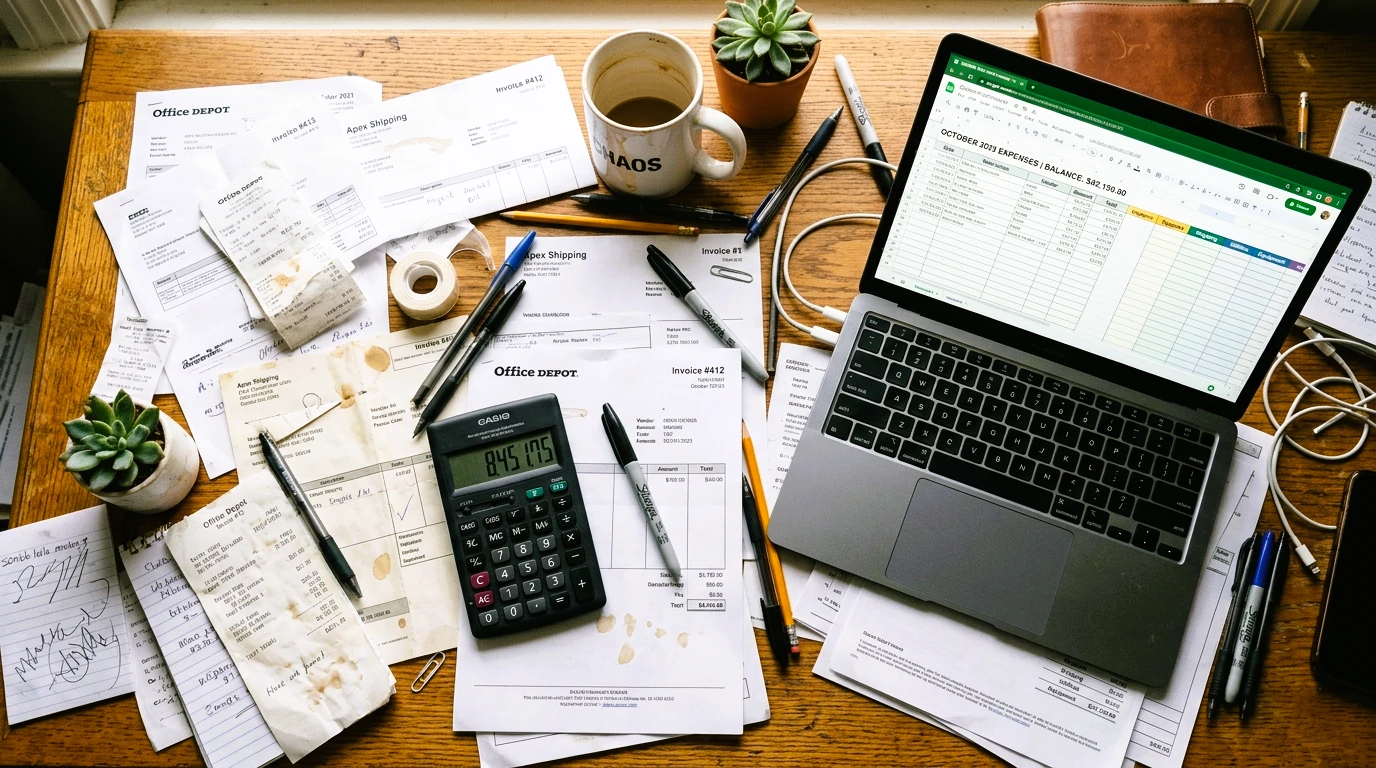
Every accounts payable team knows this feeling. A stack of invoices lands in the inbox. Someone has to open each one, type the supplier name, the invoice number, the date, the line items, the tax, and the total into a spreadsheet or an ERP system. One missed digit and a payment goes to the wrong amount. One missed due date and a vendor charges a late fee.
This is not a small problem. A mid-size company can receive hundreds of invoices a month. A single invoice can take five to ten minutes to process by hand. That adds up to dozens of hours every month spent on typing, not on work that actually grows the business.
Invoice OCR exists to fix this specific pain point. It reads an invoice, a PDF, a scan, a photo from a phone and turns it into clean, structured data your systems can use directly. No retyping. No copy-paste between five browser tabs. Just data, ready for review and entry.
This guide explains how invoice OCR actually works. What it can and cannot do, and how finance teams, developers, and business owners can use it well.
OCR stands for Optical Character Recognition. In plain terms, it is a software that looks at an image and figures out what text is written on it.
Invoice OCR takes that a step further. It doesn't just read the text. It understands which piece of text means what. It knows the difference between an invoice number and a phone number. It knows that "Total Due: $1,240.00" is not the same as a line item price of $1,240.00 on a single product.
Here's a simple way to picture it. Imagine an invoice from a printing company:
A plain OCR tool would give you a wall of text with no structure. It means you will get just the words, in roughly the order they appeared on the page. Invoice OCR gives you a labeled record:
supplier_name: "BlueLeaf Printing Co."
invoice_number: "INV-2026-0931"
invoice_date: "2026-06-03"
total_amount: "842.50"
That second format is what makes automation possible. A spreadsheet, an ERP system, or an approval workflow can read labeled fields. It can't do much with a block of unsorted text.
The short version: invoice OCR turns a picture of a document into usable, structured data.
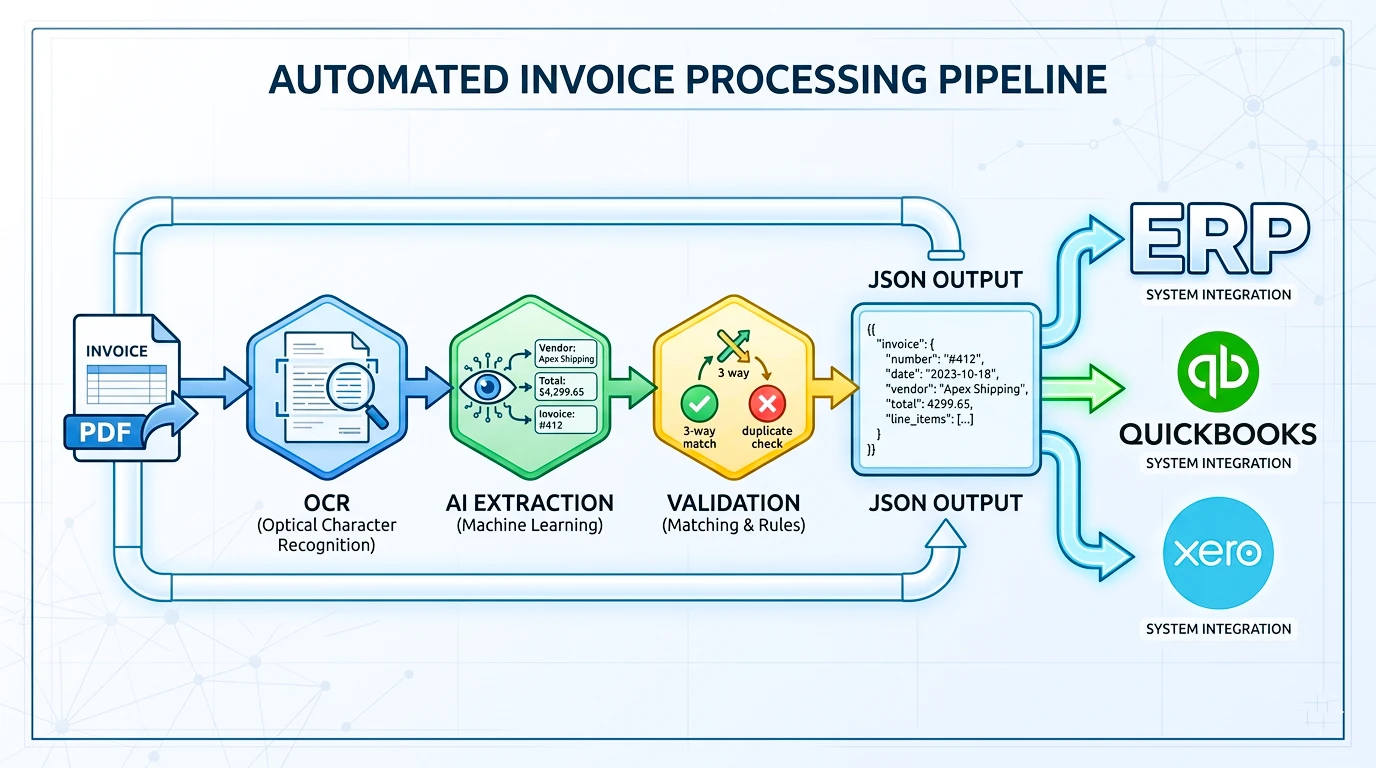
Invoice OCR isn't one single step. It's a pipeline. It's a series of stages that each do one job. Here's what happens, in order, when you upload an invoice.
Example: a logistics company receives a fuel invoice as a blurry phone photo. The system straightens the image. Reads the text and identifies "Shell Fleet Services" as the supplier. Then pulls the total of $312.40 and flags the tax field with low confidence. Because the print is faded, it routes it to a staff member for a 10-second check. That's the whole pipeline, start to finish.
Most invoice OCR systems are built to recognize a standard set of fields. since the vast majority of invoices, regardless of industry or country, share a common structure.
| Field | Example | Notes |
|---|---|---|
| Supplier name | "BlueLeaf Printing Co." | Sometimes pulled from a logo or letterhead |
| Invoice number | "INV-2026-0931" | Unique identifier per invoice |
| Invoice date | "2026-06-03" | Date format varies by country |
| Due date | "2026-07-03" | Used for payment scheduling |
| Currency | "USD", "EUR", "PKR" | Detected from symbols or codes |
| Line items | "Business cards x500 — $120.00" | Often the hardest field to extract accurately |
| Subtotal | "$770.00" | Before tax |
| Tax amount | "$72.50" | VAT, GST, or sales tax depending on region |
| Total amount | "$842.50" | Final amount due |
| Payment terms | "Net 30" | Common in B2B invoices |
| Purchase order number | "PO-44012" | Used for three-way matching |
Line items are usually the trickiest part. A simple invoice might have three rows. A construction supplier invoice might have forty rows across two pages, with subtotals per category. Tables with merged cells or inconsistent spacing are genuinely hard for any OCR system to handle. So automated or human-assisted, to get it perfectly right every time.
Here's what a realistic, full workflow looks like for a finance team that has adopted invoice OCR.
Invoices arrive through email, supplier portals, postal mail (scanned in-house), or upload links. Some companies set up a dedicated inbox, like invoices@company.com, that feeds directly into the OCR system.
Each invoice is uploaded or auto-forwarded into the OCR tool. Multi-page PDFs are handled as single documents, not split apart.
The system extracts supplier details, amounts, dates, and line items.
An AP specialist reviews flagged fields. Anything with a low confidence score, or anything that failed a validation check (like a subtotal that doesn't add up). This step usually takes seconds per invoice instead of minutes. Since most of the data is already correct.
For purchase-based businesses. The invoice is matched against the purchase order and the goods receipt. This is called three-way matching: invoice, PO, and delivery confirmation. All need to agree before payment is approved.
The invoice moves through an approval chain. A department manager, then finance, depending on the amount and company policy.
Approved invoice data is pushed into the ERP or accounting system (SAP, NetSuite, QuickBooks, or Xero). Either automatically through an API or as a structured CSV import.
The original document and extracted data are stored together for audit purposes. It is usually for a period set by local tax law (often five to seven years).
This workflow turns invoice processing from a manual data-entry job into a review job. That distinction matters. Review is faster, less error-prone, and a better use of a skilled employee's time than retyping numbers all day.
No OCR system is perfect, and any guide that tells you otherwise isn't being honest. Here are the real challenges, and how good systems handle them.
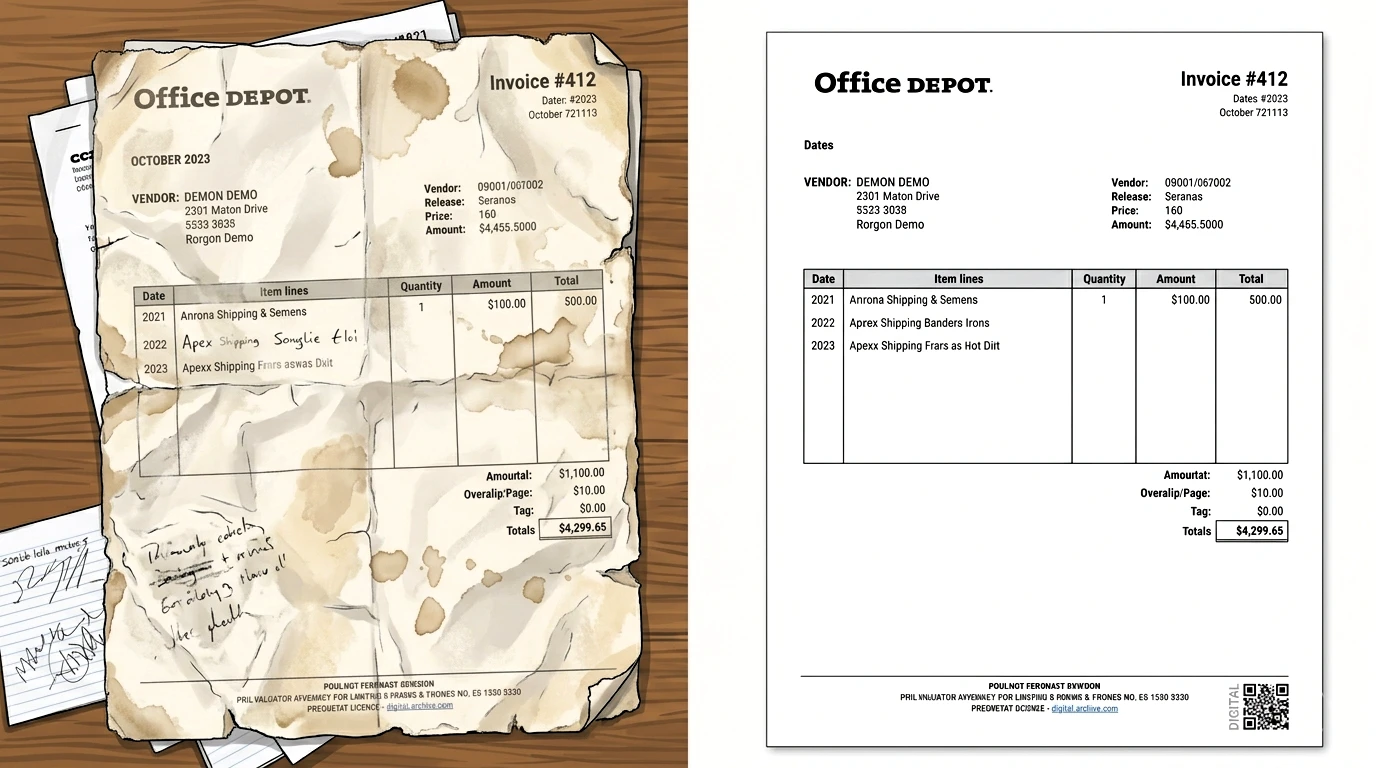
Faded ink, low resolution, or shadows from a phone camera all reduce accuracy. Solution: image preprocessing (sharpening, contrast adjustment) helps. But very poor scans may still need manual entry.
A page scanned at an angle throws off text recognition. Solution: deskewing algorithms straighten the page automatically before reading begins.
A supplier invoice in German, or one with mixed English and French text, requires language-aware OCR models. Solution: modern systems detect language per document. But accuracy can still dip on uncommon language pairs.
Multi-row line items, merged cells, and inconsistent column spacing are genuinely difficult to parse correctly every time. Solution: table-detection models trained specifically on invoice layouts, combined with validation rules.
A vendor who hand-writes a discount on a printed invoice creates a mixed-content document. Solution: handwriting recognition exists. But accuracy is meaningfully lower than for printed text. This is one area where human review is genuinely necessary, not optional.
Some invoices simply don't include a due date, or list "Net 30" instead of a specific date. Solution: systems should flag the field as missing rather than guessing.
Reflections, glare, and out-of-focus shots are common with phone-captured receipts and invoices. Solution: in-app capture guides that prompt users to retake blurry photos before upload.
The same invoice gets submitted twice. Once by email, once by post. Solution: duplicate detection compares invoice number, supplier, and amount against recent records.
None of these challenges mean invoice OCR doesn't work. They mean it works best as part of a workflow that includes a confidence score and a quick human check. Not as a fully unsupervised black box.
Not all OCR is built the same way. Understanding the differences helps you set realistic expectations.
| Approach | How it works | Strengths | Limitations |
|---|---|---|---|
| Rule-based OCR | Fixed rules look for keywords like "Total" or "Invoice #" | Fast, cheap, predictable | Breaks easily on new invoice layouts |
| Template OCR | Pre-built templates per supplier or layout | Very accurate for known, repeated formats | Needs a new template for every new supplier |
| AI/ML-based OCR | Trained on thousands of invoice layouts to recognize patterns | Handles new, unseen layouts well | Needs good training data; still makes mistakes |
| Large language models (LLMs) | Reads extracted text and reasons about context (e.g., "this number near 'Total' is the total") | Strong at understanding context and edge cases | Can occasionally make confident-sounding errors; needs validation |
| AI agents | Chain OCR + LLM reasoning + business rules into a full workflow | Can extract, validate, and route invoices with minimal setup | Still requires human oversight for exceptions |
In practice, the strongest systems combine these approaches. OCR handles the raw text reading. AI models handle field identification and context. Validation rules catch arithmetic errors. And human review handles the small percentage of cases that fall outside normal patterns. A torn invoice, an unusual currency, a supplier who formats things differently than anyone else.
Confidence scores tie this all together. A confidence score is the system's own estimate of how sure it is about a given field. A supplier name read at 98% confidence from a clean, well-known invoice probably doesn't need a second look. A tax amount read at 61% confidence from a blurry scan should always go to a human before the invoice is approved for payment.
Small businesses often assume OCR and automation are built for big companies with IT departments. That's not really true anymore.
A freelance graphic designer who gets ten invoices a month from print shops and stock photo sites doesn't need an ERP integration. They need a simple tool that reads a PDF and spits out a CSV they can drop into a spreadsheet for tax season.
For a small retail shop, restocking inventory. OCR saves time by automatically checking that a delivery invoice matches what was actually received. No manual data entry required.
A small agency or service business often deals with recurring invoices from the same handful of vendors (software subscriptions, contractors, office supplies). Once those supplier formats are recognized, extraction accuracy tends to be very high. Since the system "learns" the layout over repeated uploads.
E-commerce sellers managing supplier invoices for stock purchases use OCR. It is mainly to keep accurate cost records. Which matters for margin tracking and tax reporting.
For small businesses, the win isn't a complex workflow engine. it's just getting accurate numbers into a spreadsheet or accounting tool without typing them in by hand.
At enterprise scale, invoice OCR isn't a standalone tool. It's one stage in a much larger AP automation system.
Enterprises typically run invoice OCR data straight into an ERP system:
SAP — invoice data feeds into SAP's accounts payable module. It is often through a middleware connector. That maps extracted fields to SAP's specific data structure.
NetSuite — invoices are matched against purchase orders inside NetSuite's procurement module. Before payment approval.
QuickBooks — smaller enterprise teams often push extracted invoice data into QuickBooks as bills. Then it is ready for approval.
Xero — similar to QuickBooks, with invoice data populating draft bills for review.
At this scale, the workflow engine matters as much as the OCR accuracy. Approval chains might route an invoice differently depending on the amount. A $200 invoice might need one manager's sign-off. While a $50,000 invoice routes through finance, procurement, and a department head.
Enterprises also lean heavily on three-way matching (invoice, purchase order, and goods receipt). It is to prevent overpayment or fraud. OCR makes this practical at volume. Because manually matching thousands of invoices against POs every month isn't realistic.
Invoice OCR isn't one-size-fits-all. Different industries deal with different invoice formats and pain points.
Processing supplier invoices for medical equipment and pharmaceuticals. Where compliance documentation often needs to be archived alongside the invoice.
Matching delivery invoices against purchase orders. Across hundreds of SKUs and multiple store locations.
Handling complex, multi-page invoices with detailed line items for raw materials and components.
Managing invoices from dozens of subcontractors and suppliers, often with handwritten amendments on-site.
Extracting data from invoices submitted as part of claims processing. Where speed and accuracy both affect customer experience.
Processing vendor invoices alongside billable expense tracking for client matters.
Reading fuel, freight, and customs invoices, often photographed in the field rather than scanned in an office.
Managing high volumes of supplier invoices for food, beverage, and facility costs. Across multiple properties.
Each of these industries shares the same core need: turn paper or PDF invoices into structured data, faster than a person can type it. Also, with a clear path for human review when something looks off.
Accuracy isn't only about the software. The quality of what goes in affects what comes out. A few practical steps make a real difference:
Scan at a higher resolution. 300 DPI is a reasonable minimum for printed text; lower resolutions blur small fonts like tax IDs or line-item codes.
Deskew before upload when possible. A straight scan reads more reliably than an angled one, even with automatic correction.
Reduce noise. Avoid scanning with visible staples, shadows, or folded corners across the text.
Keep multi-page invoices together. Splitting pages apart can break the connection between a line-items table on page one and totals on page two.
Set validation rules. Require that subtotal + tax = total, and flag anything that doesn't match. Rather than trusting every extracted number blindly.
Build in human review for low-confidence fields. This is the single biggest accuracy improvement available. Not because the AI is weak. But because no automated system should make unsupervised financial decisions on incomplete information.
It's worth saying clearly: no invoice OCR system, regardless of how it's marketed, hits 100% accuracy on real-world, messy documents. The goal isn't zero errors. It's catching the errors before they cause a payment mistake.
Invoices contain sensitive financial information. Supplier bank details, tax IDs, pricing, and sometimes personally identifiable information (PII). This is tied to individual contractors or sole proprietors.
A few practices matter here:
Data retention policies. Know how long extracted data and original documents are stored. Does that align with your local tax and audit requirements.
GDPR and regional privacy law compliance. If invoices include PII for individuals in the EU or UK, GDPR rules apply to how that data is processed and stored.
Access control. Not everyone in a finance team needs access to every supplier's banking details. Role-based access limits exposure.
Audit trails. A record of who viewed, edited, or approved each invoice protects against both error and fraud.
Encryption. Documents and extracted data should be encrypted both in transit and at rest.
Before adopting any invoice OCR tool. it's reasonable to ask the provider directly how long they retain uploaded documents. Where data is stored, and it's used to train models without consent.
For developers and businesses building their own automation, invoice OCR is increasingly available as an API. Not just a standalone web tool.
A typical API workflow looks like this: upload a PDF or image, receive structured JSON back with labeled fields, confidence scores per field, and line items broken out as an array.
{
  "supplier_name": "BlueLeaf Printing Co.",
  "invoice_number": "INV-2026-0931",
  "invoice_date": "2026-06-03",
  "due_date": "2026-07-03",
  "total_amount": "842.50",
  "confidence": 0.94,
  "line_items": [
    { "description": "Business cards x500", "amount": "120.00" }
  ]
}
This kind of structured output is what makes AI agents possible. An agent can take this JSON, calculate whether the totals reconcile. Then categorize the expense (office supplies, freight, software), and route it for approval. All without a person opening the file.
Looking ahead, agentic workflows are likely to combine OCR extraction with reasoning steps:
matching a new invoice against historical spend with the same supplier to flag anomalies.
Auto-categorizing expenses for accounting codes. Then, push approved invoices into ERP systems through an API connection. With exceptions still routed to a human.
This is where invoice OCR is heading: not replacing the AP team, but removing the repetitive typing so the team can focus on judgment calls.
For broader document needs, an Image to Text Converter handles general text extraction beyond invoices
Developers building their own pipelines can review the API documentation for integration details. Related document types, including receipts, bank statements, ID cards, and passports. These are covered in dedicated guides on Receipt OCR, Bank Statement OCR, ID Card OCR, and Passport OCR.
Yes, to a degree. Handwriting recognition has improved significantly, but accuracy is still meaningfully lower than for printed text. Handwritten amounts and notes should generally go through human review before approval.
It depends heavily on document quality and layout complexity. Clean, digital PDFs typically see very high accuracy on standard fields. Blurry scans, handwriting, and unusual layouts reduce accuracy. No system should be assumed to be 100% accurate. That's why confidence scores and review workflows exist.
Yes. Both digitally generated PDFs (from accounting software) and scanned PDFs (from physical documents) are supported. Though digital PDFs generally extract more reliably since the text is often already embedded.
Yes, most invoice OCR systems are built specifically to detect and extract line-item tables. Complex tables with merged cells or inconsistent formatting are harder and more prone to errors. Than simple, well-structured tables.
Yes. Systems are typically trained to recognize common tax labels like VAT, GST, and sales tax. Along with the associated percentage and amount. Regional tax formats vary, so accuracy can differ by country.
Yes. CSV export is one of the most common output formats. Especially for teams that work primarily in spreadsheets rather than full ERP systems.
Yes, either through direct API integration or by exporting data in a format that QuickBooks can import as draft bills.
A low-confidence field gets flagged for manual review rather than being automatically accepted. This is a core part of a responsible invoice OCR workflow. Automation should make reviews faster, not remove them entirely.
Invoice OCR won't eliminate the need for a finance team's judgment. What it removes is the repetitive part of the job. The retyping, the manual cross-checking, the hours lost to data entry. Used well, with proper validation and human review built in. It turns invoice processing from a bottleneck into a fast, reliable step. In the broader AP workflow.